
Tracking CTAs since 1994
About Autumn Gold
We have both subscribers and brokers looking for new product and would be happy to review your information.
Autumn Gold specializes in Commodity Trading Advisors and CPOs but will accept listings from FX and hedge funds.You can choose the level of exposure. Information can be made available to the general public or can be limited. Data will list Investor Qualifications. We have a global audience. Products that are not NFA registered will be listed as For Non-US Investors Only.
Add your CTA/Fund
Download & Complete an Excel file HereEmail it to kim@autumngold.com
Download & Complete a PDF File Here
Email it to kim@autumngold.com
Free Services
Printable Monthly Ranking Reports | Statistical ReportsAdditional Marketing & Reporting Services
Monthly
Tear Sheets
- Custom
Tear Sheets - For CTAs or Funds
- Sample Report 1
- Sample Report 2
- Sample Report 3
- Sample Report 4
- Excel Sample Report
$150 per month
Call 719-685-6183Retail
Due Diligence
- Retail
Due Diligence Reports
A Due Diligence Report
that can be sent
to Retail prospects- Sample Retail
Due Diligence Report
Pricing Starts at $750
Call 719-685-6183Institutional
Due Diligence
- Institutional
Due Diligence Reports
A Due Diligence Report
designed to send to
family offices and
institutional investors
E-mail Us for a Sample
Pricing Starts at $1,200
Call 719-685-6183Manager
Presentations
- Manager
Presentations - Includes Your Logo & Contact Information
- PDF Version of
Sample Power Point
Expanded
Statistical Report
$150 per page
Call 719-685-6183Updating, Reporting & Accessing your Information
We are currently updating this information. For questions please email kim@autumngold.com
Manager's can add/edit their profiles, peformance, or assets under management by logging in here
Login using your credentials. If you don't can't find your username and password click on the Forgotten Password link on the Manager's Login Page.
Once you are logged in you will see a screen like this. To add/edit performance double-click on the cell you wish to add/edit

If you have more than one program there will be multiple tabs across the top. To open, just click on the tab of the program you want to work on.
The program in bold is your current selection.
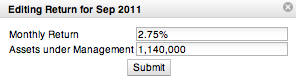
Add the monthly return as a % and the assets without the commas. Commas will be added by the system.
If you have more than one program there will be multiple tabs across the top. To open, just click on the tab of the program you want to work on.
The program in bold is your current selection.
Add the monthly return as a % and the assets without the commas. Commas will be added by the system.
To Avoide Double Entries - Click the submit button ONLY ONCE
Just click on the cell you wish to edit and make the necessary changes.
Hint: If you want to edit a cell with 0 assets you will need to enter the assets as a number less than 1 such as .01 or else you will get an error.
Hint: If you want to edit a cell with 0 assets you will need to enter the assets as a number less than 1 such as .01 or else you will get an error.
To Avoide Double Entries - Click the submit button ONLY ONCE
To edit your Contact Information or CTA Profile click on the  icon and follow the instructions.
icon and follow the instructions.
Once you are logged in you will see a screen like this. Each tab contains three icons.
View your Profile by clicking on the Your Profile will open in a new window.
View your Tear Sheet by clicking on the Your Tear Sheet will open in a new window.
Year to Date numbers are automatically calculated. Check to make sure that your numbers agree. If the difference is slight you may want to carry out your performance to three decimal places.
Common Mistakes: The most common mistake is entering a postive number as a negative or a negative as a positive. The second most common mistake is entering one month's data twice.
View your Profile by clicking on the
Your Profile will open in a new window.View your Tear Sheet by clicking on the
Your Tear Sheet will open in a new window.Year to Date numbers are automatically calculated. Check to make sure that your numbers agree. If the difference is slight you may want to carry out your performance to three decimal places.
Common Mistakes: The most common mistake is entering a postive number as a negative or a negative as a positive. The second most common mistake is entering one month's data twice.
The best results click on the "PRINT TO PDF" link at the top right of any page.
Each Tear Sheet can be customized by Date Range and by Program/Index Comparisons
Date Range: Each report defaults to 60 months of performance. You can change this by selecting new start or end dates from the drop down menu.
Then click on the "Reload Leaf Report" button.

Index/Program Comparisons: Your Monthly Report Comparisons will default to the Autumn Gold CTA Index and the SP 500 TR Index. You may eliminate either Index by clicking on the delete button
You may compare your program to a variety of indexes and to other CTA programa. Choose the index/Program from the drop down menu and then click on the "Reload Leaf Report" Button

Date Range: Each report defaults to 60 months of performance. You can change this by selecting new start or end dates from the drop down menu.
Then click on the "Reload Leaf Report" button.
Index/Program Comparisons: Your Monthly Report Comparisons will default to the Autumn Gold CTA Index and the SP 500 TR Index. You may eliminate either Index by clicking on the delete button
You may compare your program to a variety of indexes and to other CTA programa. Choose the index/Program from the drop down menu and then click on the "Reload Leaf Report" Button